
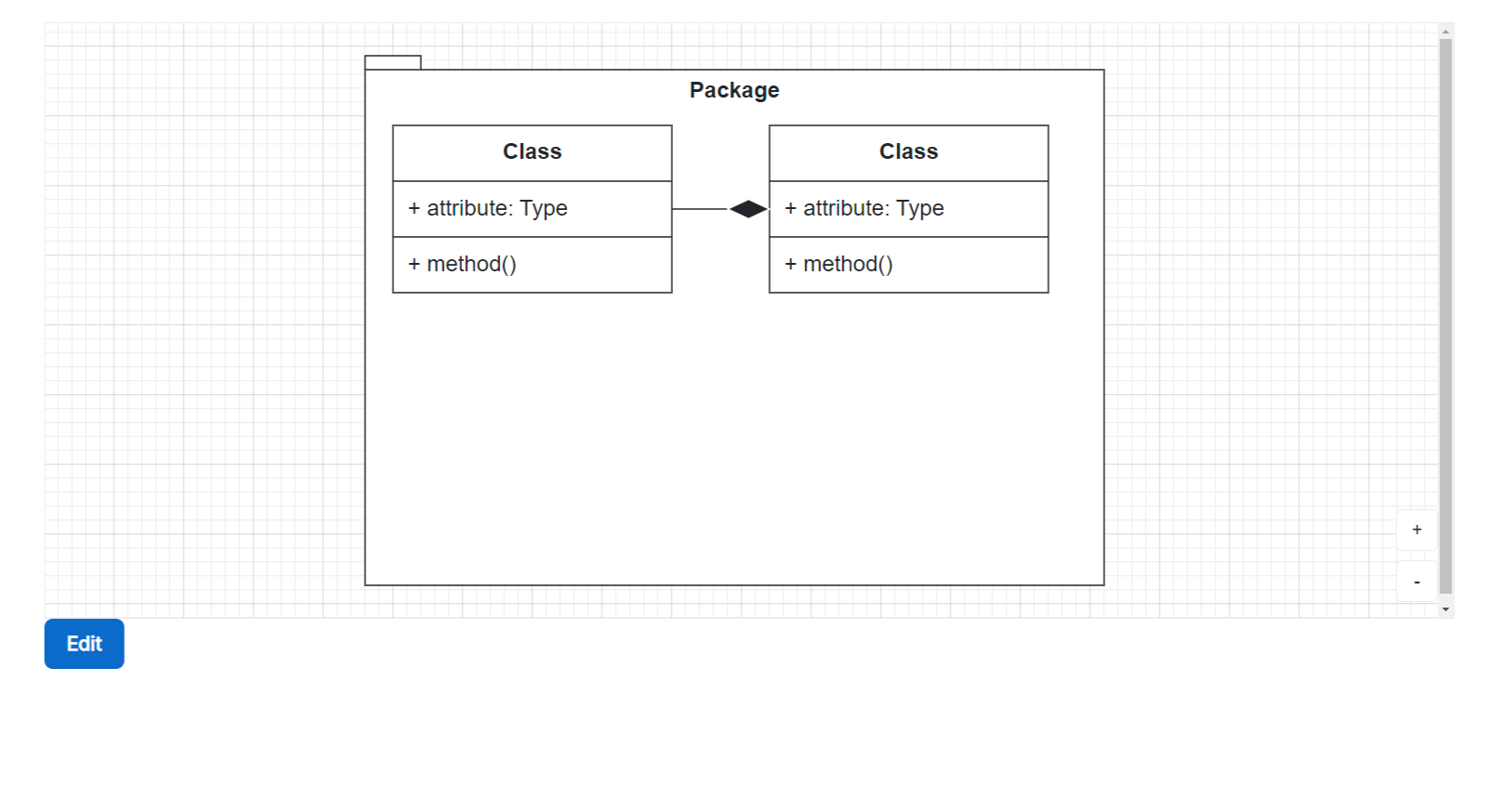
The Easy UML Editor integrates seamlessly with Confluence, offering a straightforward approach to creating and managing UML diagrams. Based on the Apollon UML Editor, it brings a suite of powerful features tailored for effortless diagramming.
Installation
Navigate to the Atlassian Marketplace and search for "Easy UML Editor for Confluence".
Click "Install" and follow the prompts to add Easy UML Editor to your Confluence instance.
Basic Setup
Creating a Diagram
- Insert the "Easy UML Editor" Macro in a page.
- Save the page and click the "Edit" button outside of Confluence’s own page edit mode.
Working with Diagrams
Select Diagram Type: Choose the type of UML diagram you want to create from the menu.
Add Elements: Drag elements from the sidebar onto the canvas. Double-click to edit their properties.
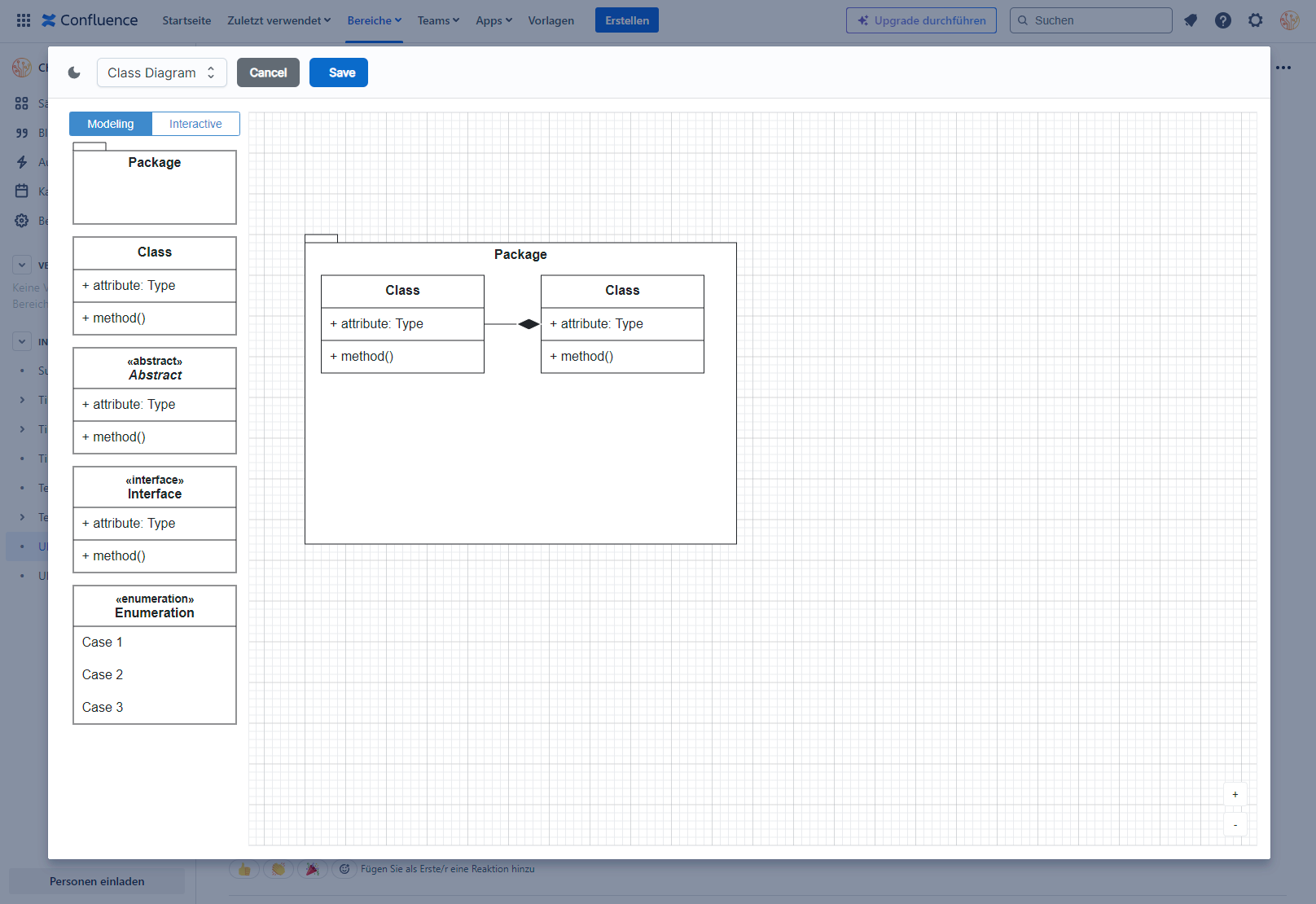
Connect Elements: Use the connection tools to draw relationships between elements.
Save & Share: Save your diagram to integrate it into your Confluence page. Share the page with your team for collaboration.
Tips for Effective Use
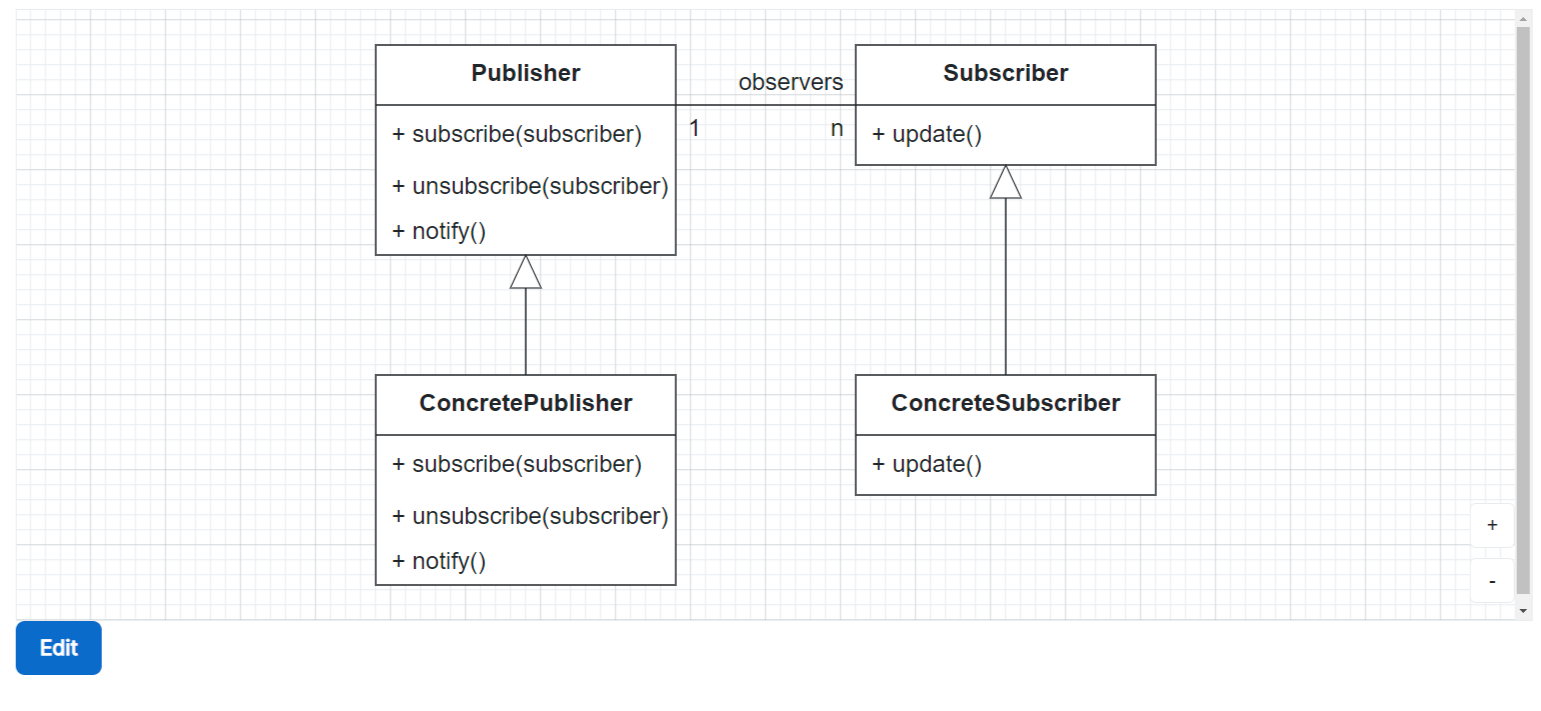
Plan Your Diagram
Sketch a rough outline before you start for clearer organization.
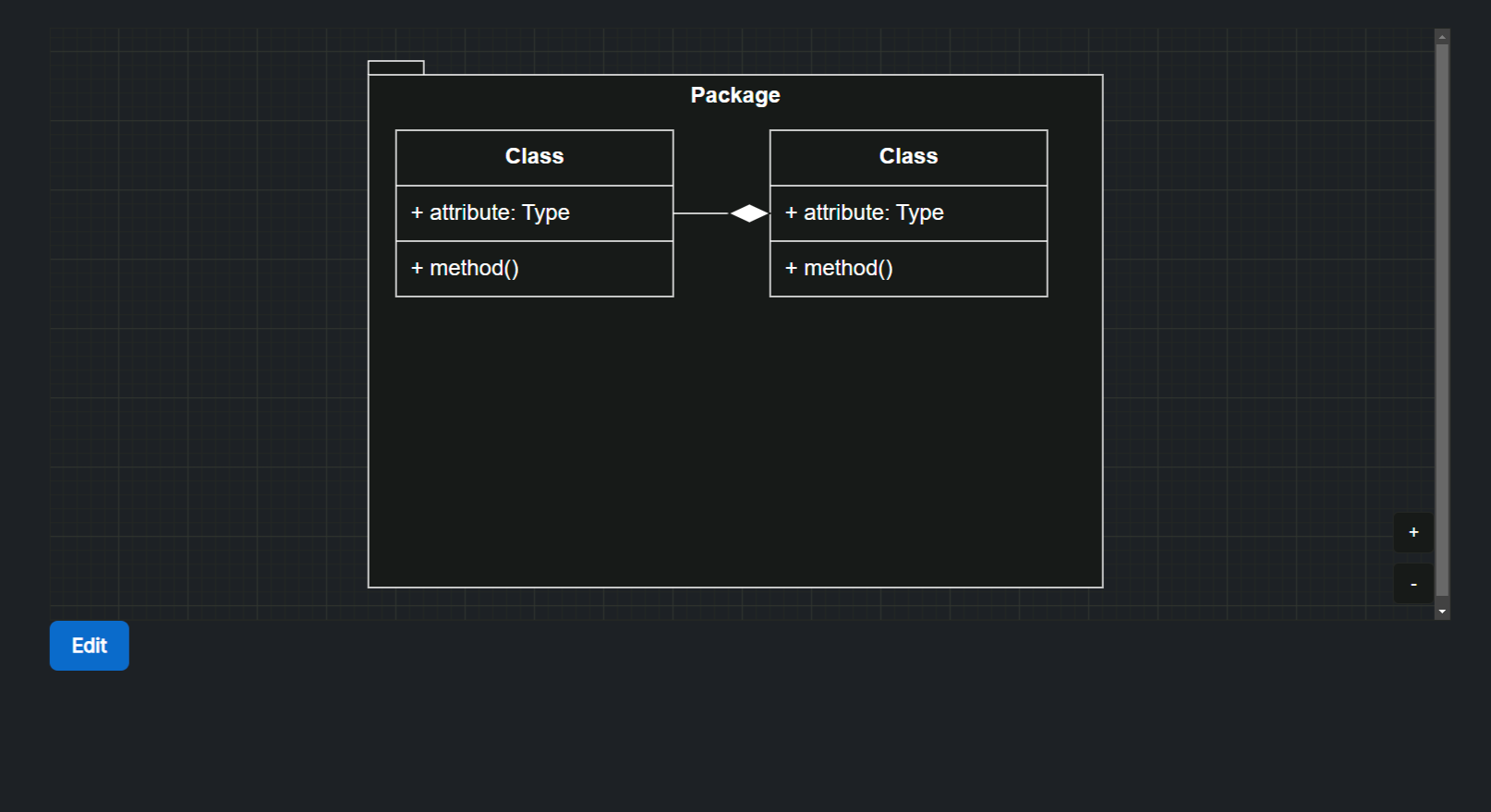
Dark Mode
Easy UML Editor supports Confluence’s dark theme automatically.
Storage Note
Keep in mind that diagrams are not versioned with the other page content. This is a feature planned for the future.
Troubleshooting
Diagram not Displaying Correctly:
Ensure your browser is up to date and clear your cache. If issues persist, check Confluence’s compatibility mode settings.
Permissions Issues:
Verify that the correct permissions are set for users attempting to edit the diagram. Contact your Confluence administrator for further assistance.
For additional support, visit our FAQ section on the Easy UML Editor Marketplace listing or contact us at [email protected].